
How Koala works
This page explains Koala’s moving parts and where its boundaries are, so you can judge what a VM can and cannot do. For commands, see the user guide.
The pieces
Section titled “The pieces”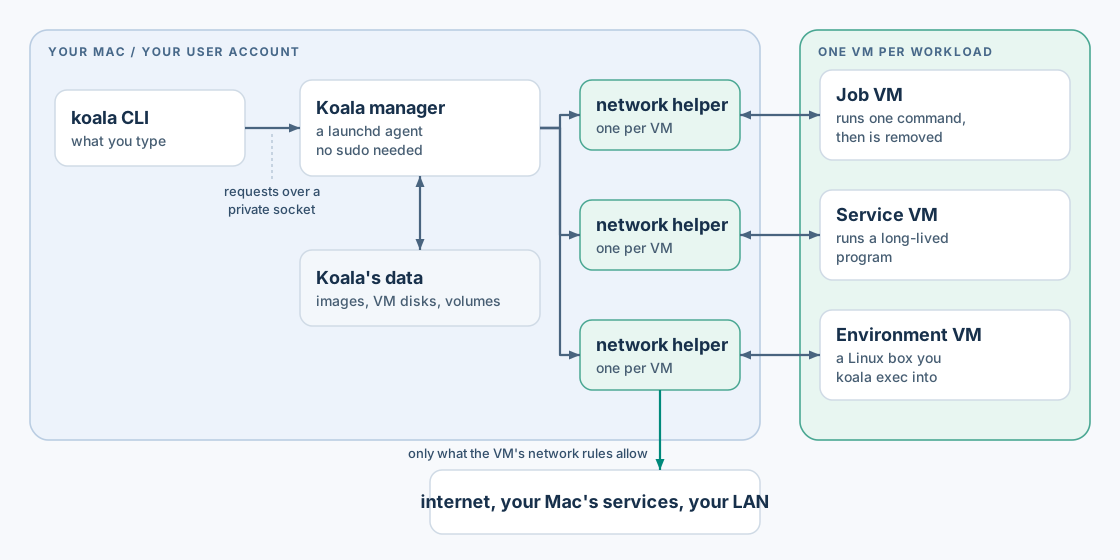
Koala is a few cooperating processes, all running as you, the logged-in macOS user. None of them runs as root.
| Piece | What it does | What it can touch |
|---|---|---|
koala CLI |
Parses commands, prints output, attaches your terminal | The manager’s private socket, and files you explicitly copy or share |
Manager (koala-manager, launchd agent dev.koala.manager) |
Keeps VM definitions and state, pulls images, admits new VMs against limits, starts and supervises VMs | Koala’s state directory, your login keychain entries for Koala, and the helpers it starts |
| VM worker (one per running VM) | Runs one virtual machine with Apple’s Virtualization framework, streams commands and logs | That VM’s disks, its granted folders and its own sockets; no network, no registry credentials |
Network helper koala-net (one per running VM) |
The VM’s entire network: DHCP, DNS, every TCP and UDP flow, published ports | Network sockets only; no disks, no secrets. Runs in the App Sandbox |
| Image extractor | Turns verified image layers into a Linux disk image | Only the files the manager hands it; no network, no keychain. Runs in the App Sandbox |
Credential broker koala-broker (started when a VM first needs it) |
Adds an API key from your login keychain to the requests a policy allows, for one service per policy | Its own keychain items, and outbound HTTPS to the services your policies name; no listening port, no disks. Runs in the App Sandbox |
| Guest agent (inside the VM) | Starts processes, terminals and file transfers in the guest | The guest only. Everything it says is treated as untrusted |
The CLI talks to the manager over HTTP and WebSocket on a Unix socket that only your user can open. There is no TCP control port. The manager is started on demand by launchd, so there is nothing to keep running yourself.
One VM per workload
Section titled “One VM per workload”Each job, service or environment gets its own ARM64 Linux VM with:
- its own Linux kernel, supplied by Koala’s verified runtime bundle (an image provides the filesystem and defaults, not the kernel);
- its own writable disk, cloned from a shared, read-only prepared image, so VMs never write to each other’s files;
- its own network stack, in its own helper process. There is no shared bridge between VMs, so one VM cannot see or spoof another.
A VM is either lean, which runs one OCI image with a minimal init, or full, which runs a Linux distribution with systemd and Docker Engine. See profiles.
The diagram leaves out the in-between states (Creating, Starting,
Stopping, Deleting); jobs and VMs lists
them all. Jobs are removed when their command ends. Services and environments keep
their disk across stops and starts until you remove them. A VM keeps running
when you close your terminal, but not when you log out or restart your
Mac. See limits.
Images
Section titled “Images”When you create a VM from an image, the manager:
- resolves the reference to its
linux/arm64variant, using your registry login if one is needed; - downloads the manifest and layers over TLS and checks every size and digest;
- hands the verified layers to the sandboxed extractor, which builds an ext4 disk image without mounting anything on your Mac and without running any code from the image;
- pins the image digest in the VM’s definition, so a tag that moves upstream never changes an existing VM.
Prepared images are cached and shared between VMs, so a second VM from the same image starts without downloading. Koala does not build Dockerfiles. See images.
Networking: checked on the Mac side
Section titled “Networking: checked on the Mac side”Every packet a VM sends goes to its own network helper on the Mac. The helper decides, per connection and on the final destination address, whether to let it through. Nothing in the guest, not even root, can change those rules, because they are not inside the guest.
- The rules are fixed when a VM starts. To change them, stop the VM, update its spec and start it again.
- “Internet” means public addresses only. Your local networks and VPN ranges count as local even if their addresses look public, and stay blocked.
- When your Wi-Fi, VPN or routes change, new connections pause until the helper has re-checked what is local; ones that are no longer allowed are closed. If in doubt, it refuses.
- Published ports listen on
127.0.0.1unless you ask for the LAN.
See networking.
Files, volumes and secrets
Section titled “Files, volumes and secrets”- Shared folders reach the VM through VirtioFS, read-only unless you ask for read-write. Treat anything a VM writes into a share as untrusted output. See storage.
- Named volumes are disks that outlive a VM, for data you want to keep.
koala cpcopies files in and out without sharing a folder at all.- Secrets live in your login keychain. A VM gets a secret only if its spec names it, either as a root-only file in memory (never on the VM’s disk) or as an environment variable. Values never appear in specs, logs, process arguments or command output. See secrets.
Agents without credentials
Section titled “Agents without credentials”For an AI agent or another tool you do not fully trust, keep its API key out
of the VM entirely. The key stays in your login keychain. The VM gets a
broker grant instead, and koala-broker on your Mac adds the key to the
requests a policy allows, for the one service it names. This works with the
VM’s internet off:
koala policy create openai-main --template openai --model gpt-4.1-mini # asks for the keykoala create agent --image docker.io/library/alpine:3 --no-internet \ --broker openai=openai-main --waitA compromised agent can still use the access you granted, within the policy’s limits, but it cannot take the key. See keys on your Mac, and the Hermes example, which runs an AI agent with its model key on your Mac and the internet off. For other services, a host-service grant to a small service of your own works the same way.
A VM template puts all of this in one command for a
known agent: koala create hermes --template hermes makes the policy, the
VM with its broker grant, a volume and the setup, after showing the plan.
The trust model
Section titled “The trust model”Koala trusts you, the logged-in macOS user, and macOS itself.
Koala does not trust anything inside a VM: guest root, the guest kernel, image contents, and every message from the guest agent. Access controls sit outside the guest, in separate host processes, where a compromised guest cannot switch them off. The network helper and image extractor run in the App Sandbox, and so does the credential broker. Each VM worker runs under a per-VM sandbox profile that allows only that VM’s files.
Koala does not promise:
- protection from a compromised macOS or its hypervisor, or from yourself;
- that data a guest has already received can be taken back; removing a share or a secret stops only future access;
- that a VM keeps running across logout or restart;
- dedicated CPU cores, or a cap on the Mac’s total memory use.